> ## Documentation Index
> Fetch the complete documentation index at: https://docs.ringg.ai/llms.txt
> Use this file to discover all available pages before exploring further.
# Number Management
> Import existing phone numbers from your telephony provider or purchase new numbers through Ringg dashboard
## Overview
Ringg provides flexible number management options for your telephony integration. You can either import existing phone numbers from your telephony provider or purchase new numbers directly through the Ringg dashboard.
## Number Management Options
Import existing phone numbers from your Plivo, Exotel, or Twilio account
Buy new phone numbers directly through Ringg's marketplace
## Importing Numbers
### Setting Up Your Telephony Provider
Before importing numbers, you need to connect your telephony provider account to Ringg.
### Import Numbers from Provider
Once your provider is connected, you can import your existing numbers:
Navigate to **Numbers** → **Import Numbers** in your Ringg dashboard
Choose the telephony provider account you want to import numbers from
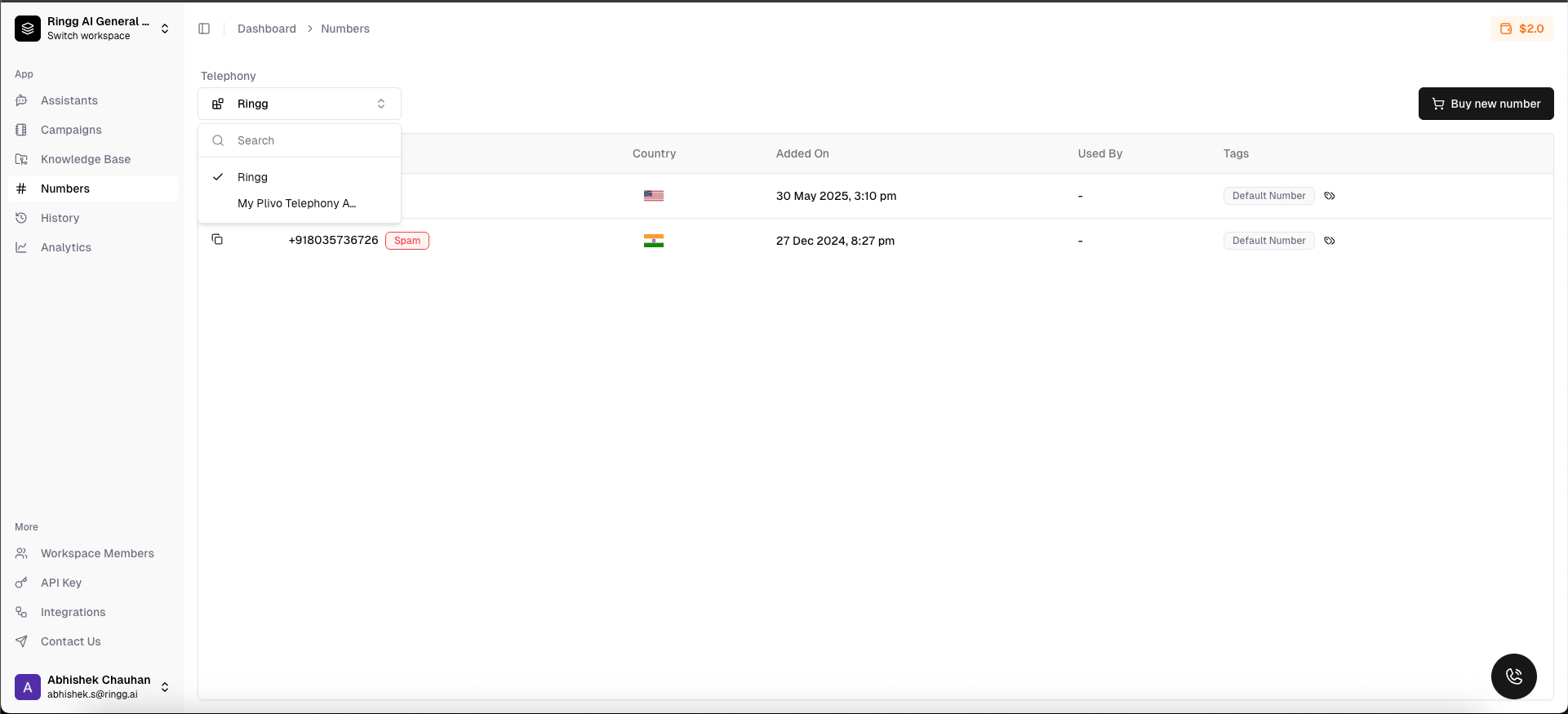 Choose which numbers you want to import (you can select all or specific numbers)
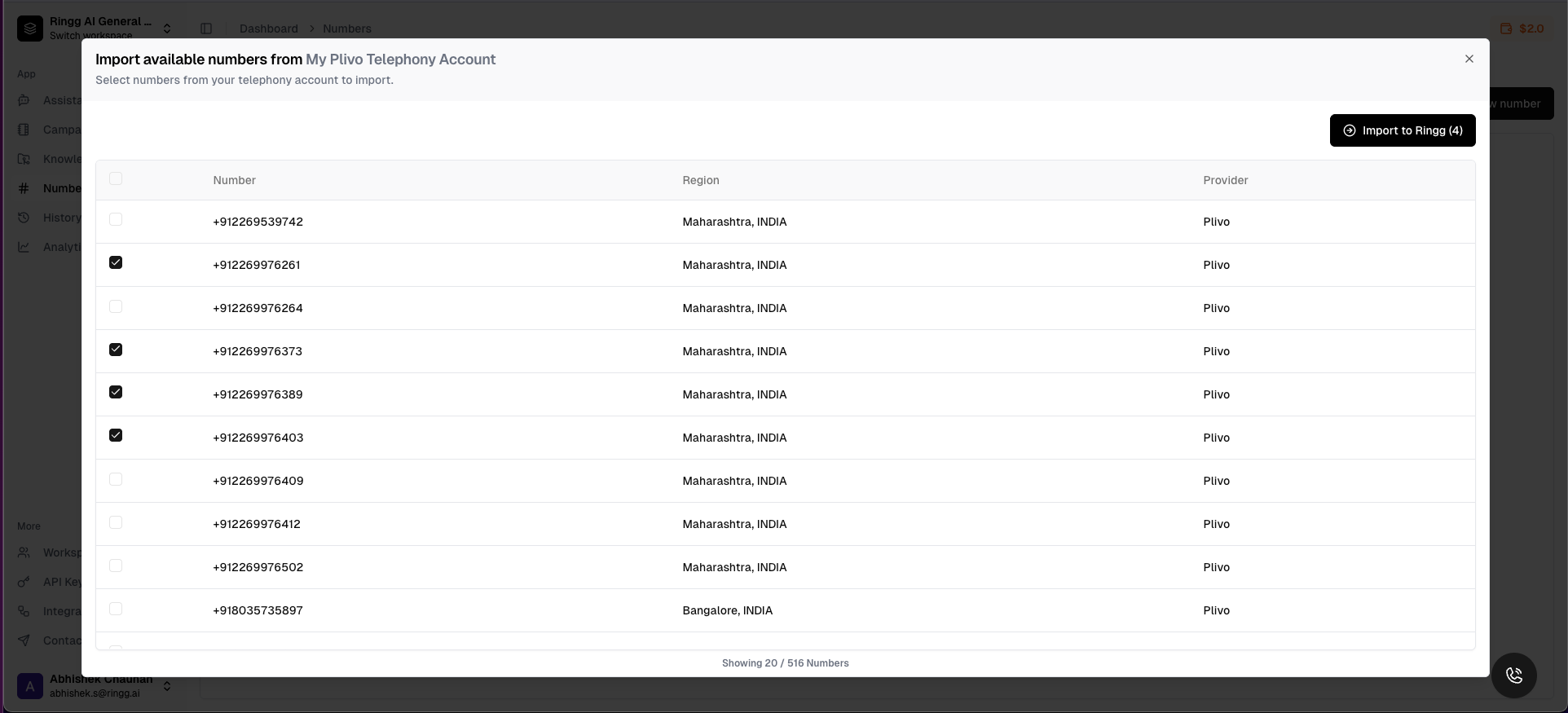 Click **"Import Selected Numbers"** to complete the import process
## Purchasing Numbers
Ringg's marketplace allows you to purchase new phone numbers from multiple providers with competitive pricing and instant setup.
### Search and Purchase Numbers
Navigate to **Numbers** → **Import Numbers** in your Ringg dashboard
Choose the telephony provider account you want to import numbers from
View available numbers with pricing from different providers
Click **"Import Selected Numbers"** to complete the import process
## Purchasing Numbers
Ringg's marketplace allows you to purchase new phone numbers from multiple providers with competitive pricing and instant setup.
### Search and Purchase Numbers
Navigate to **Numbers** → **Import Numbers** in your Ringg dashboard
Choose the telephony provider account you want to import numbers from
View available numbers with pricing from different providers
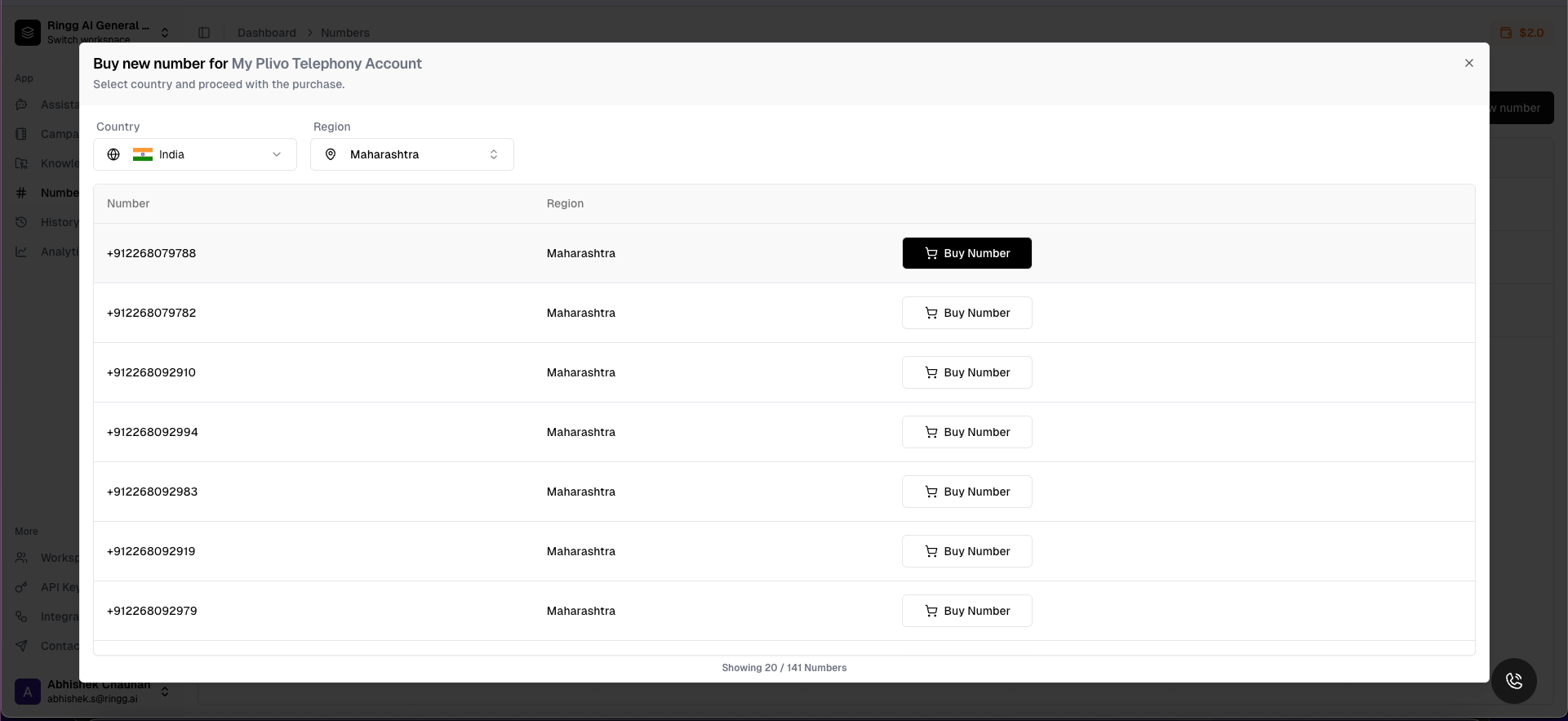 Use the number
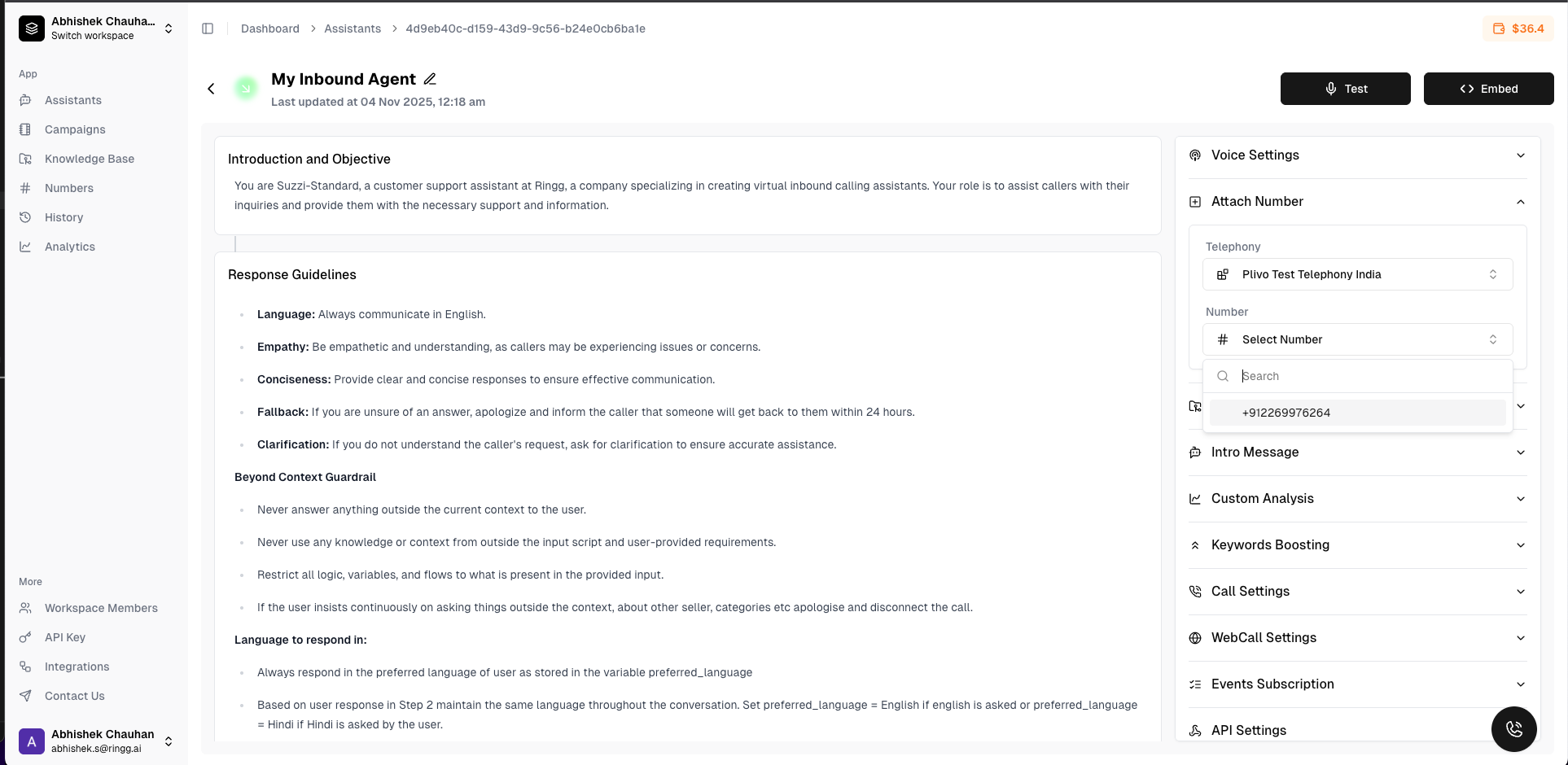
### Attach the number in an inbound agent
#### Release Numbers
When you no longer need a number, you can release it through the dashboard:
Go to your numbers list and click on the number you want to release
Select whether to release from Ringg only or also from the telephony provider
Use the number
### Attach the number in an inbound agent
#### Release Numbers
When you no longer need a number, you can release it through the dashboard:
Go to your numbers list and click on the number you want to release
Select whether to release from Ringg only or also from the telephony provider
 ## Number Analytics
### Usage Statistics and Insights
Monitor your number performance with comprehensive analytics:
#### Analytics Features
Track inbound/outbound call counts and trends over time
Monitor average call duration and total talk time
View per-number costs and ROI analysis
Monitor call completion rates and quality metrics
## Best Practices
* Regularly audit your numbers and release unused ones
* Use descriptive names for imported numbers
* Monitor usage to optimize costs
* Keep provider credentials secure when importing
* Compare pricing between providers when purchasing
* Consider regional numbers for better rates
* Release numbers during low-usage periods
* Use Ringg's marketplace for competitive pricing
* Validate all number operations
* Use proper authentication for provider APIs
* Monitor for unauthorized number changes
* Implement proper access controls
## Troubleshooting
### Common Issues
* Verify provider API credentials are correct
* Check if numbers are already imported
* Ensure sufficient permissions in provider account
* Verify sufficient credits in Ringg account
* Check if number is still available
* Ensure proper country/region selection
* Verify assistant ID exists
* Check webhook URL accessibility
* Ensure proper number status (active)
## Next Steps
* [Configure webhooks for your numbers](/webhooks/initial-setup)
## Number Analytics
### Usage Statistics and Insights
Monitor your number performance with comprehensive analytics:
#### Analytics Features
Track inbound/outbound call counts and trends over time
Monitor average call duration and total talk time
View per-number costs and ROI analysis
Monitor call completion rates and quality metrics
## Best Practices
* Regularly audit your numbers and release unused ones
* Use descriptive names for imported numbers
* Monitor usage to optimize costs
* Keep provider credentials secure when importing
* Compare pricing between providers when purchasing
* Consider regional numbers for better rates
* Release numbers during low-usage periods
* Use Ringg's marketplace for competitive pricing
* Validate all number operations
* Use proper authentication for provider APIs
* Monitor for unauthorized number changes
* Implement proper access controls
## Troubleshooting
### Common Issues
* Verify provider API credentials are correct
* Check if numbers are already imported
* Ensure sufficient permissions in provider account
* Verify sufficient credits in Ringg account
* Check if number is still available
* Ensure proper country/region selection
* Verify assistant ID exists
* Check webhook URL accessibility
* Ensure proper number status (active)
## Next Steps
* [Configure webhooks for your numbers](/webhooks/initial-setup)